Help your parents from another city
Help with an app, a setting or a hard-to-read page from wherever you are. Prepare a Remoqa connection together and keep your parents in control.
The short version
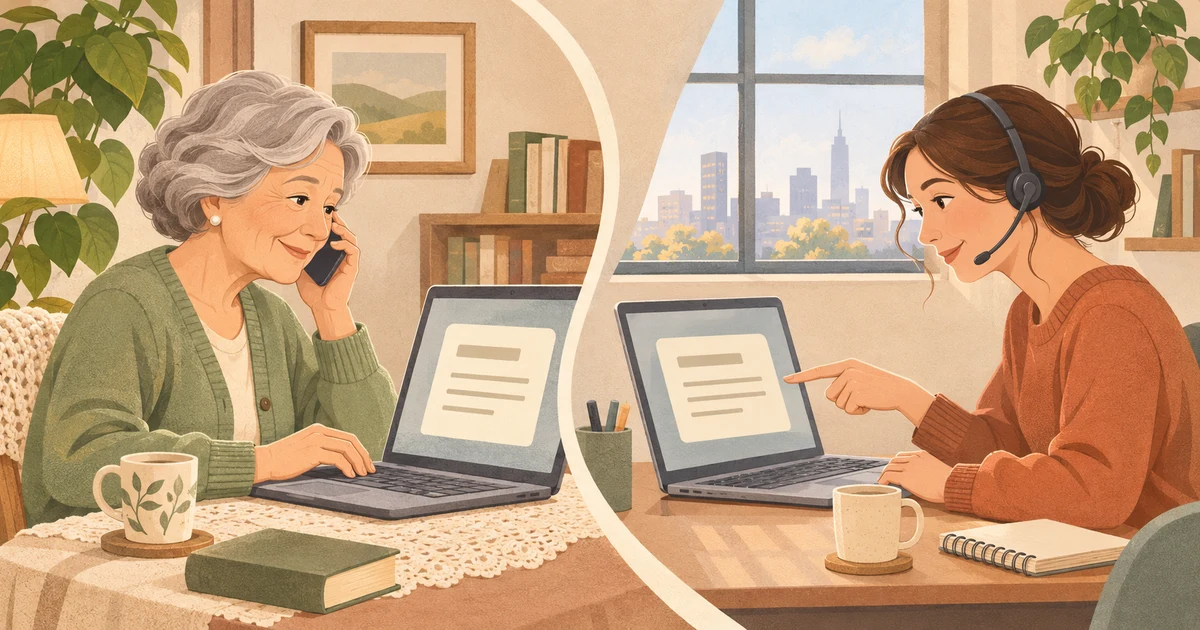
You can help with everyday computer tasks from another city. Start with your parent's agreement, use their Remoqa ID and a current access method, and finish by checking the result together.
A page is too small to read, an app opens the wrong window, or a downloaded document seems to have disappeared. These problems are easier to discuss when you can see the same screen. A remote session lets you work through them together without waiting for the next family visit.
Start with one thing you want to fix
Ask your parent to show you what happens and agree on a small goal: make a page readable, install an app they want, or find a document. Leave the message or window open so you can inspect the same starting point.
Keep a phone call going alongside the session. Explain a change before making it, and take turns with the mouse and keyboard. Seeing the screen helps; giving each other time helps just as much.
Prepare the first connection together
Download Remoqa from the official Downloads page and open it on your parent's computer. Use a supported desktop app on your side, or the browser viewer. The computer you want to control still needs the app and the operating system permissions it requests; on a Mac, these include screen recording and control permissions.
Both computers need to be awake and online. Practice opening Remoqa and finding the nine-digit device ID before an urgent problem arises. The ID identifies the computer; permission to connect is a separate step. You do not need to buy a static IP address or set up port forwarding for a relay connection.
Your first help session, step by step
Keep your parent at the computer for this first session, including any local permission prompts.
- Arrange the call
Agree that you are about to connect. Ask your parent to open Remoqa and confirm that the computer is online. Close unrelated private windows before sharing the desktop.
- Get the ID and current password
Ask them to read out the nine-digit Remoqa ID and the one-time password currently shown in the app. Share these privately during your agreed call, rather than in a public chat.
- Connect and compare the code
Enter their ID in your app or browser viewer, then use the one-time password when asked. If Remoqa displays a security code, compare it on both computers over the call and confirm only if it matches. Cancel if it does not.
- Make the agreed change
Check that you see the expected desktop, then work on the task you discussed. Explain what you are opening. Some installation or system prompts may need your parent to act locally; pause and guide them through those.
- Let your parent try it
Stop using the controls and ask them to repeat the task: open the app, read the page or locate the document. Once it works for them, end the remote session and leave a short note about what changed.
What you can help with from a distance
A remote desktop is useful for work you can do on the screen. It cannot turn on an unplugged computer, restore a lost internet connection by itself, or reconnect a printer cable. For a physical problem, guide your parent by phone or arrange help nearby.
- Make everyday apps comfortable
Adjust browser zoom, check the selected sound output or place a useful shortcut where it is easy to find. Try one change at a time and check the result together.
- Set up a wanted program
Use the software maker's official download and check that the computer supports it. Ask before installing or removing anything, and let your parent handle personal sign-ins themselves.
- Find or copy a document
Look in the expected folder and agree where the file should go. The desktop apps can transfer files during a session; wait for the transfer to finish and check the copy.
Keep future help simple and agreed
Show your parent where to disconnect before you finish. They should only share an access password or accept a request when they know who is connecting and have agreed to the help. An unexpected caller asking for remote access is a reason to stop and call you on a number they already know.
For the next session, ask for the current one-time password or have your parent approve the request on screen. A permanent password for unattended access is a separate choice to discuss together, not a requirement for occasional help. Keep the first setup simple, and practice a short connection while everything is working.