Your home PC, on a lighter device
Leave your main computer at home and reach its apps from a laptop or Android tablet. Set up a permanent password and test your remote workspace before you go.
The short version
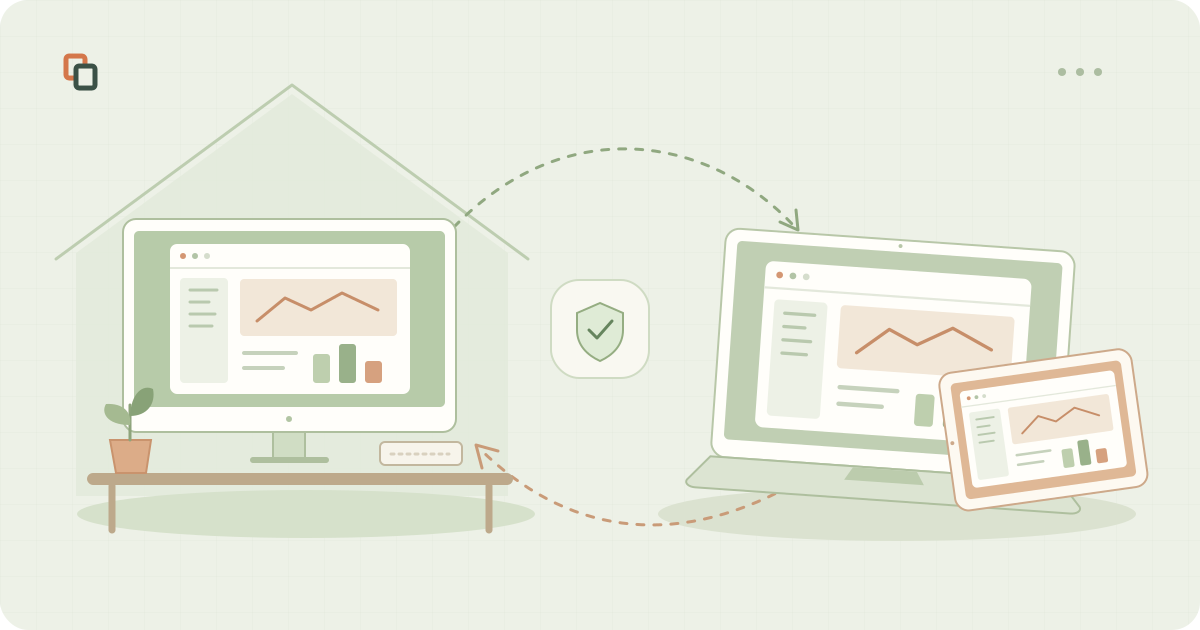
You can use the computer you already have at home from a lighter device. Prepare unattended access in advance, keep the home computer online and test the tasks you need on your chosen client.
Your development tools, project files and familiar workspace are already on your desktop. A few days away do not have to mean setting everything up again on a laptop. With Remoqa, you can open that desktop remotely and carry a device that is easier to travel with.
Let the home computer do the work
When you launch an app inside the remote desktop, it runs on the home computer. A code build, spreadsheet calculation or export uses that computer's resources. The connecting device displays the session and sends your input; it does not need a second installation of the same work apps.
That makes a lighter laptop useful for reviewing a project, editing a document or checking a long-running task. It still needs to handle the remote video smoothly. Screen size, keyboard comfort and connection quality matter alongside the power of the computer at home.
Choose a device that suits the task
Start with a client that is available for your device, then check the controls you need for your work.
- A laptop or another desktop
Remoqa has Windows, macOS and Linux desktop apps. A keyboard and pointer are useful for longer sessions, detailed editing and working across several windows.
- An Android tablet or phone
Use the Android app to reach your home computer. A tablet gives you more room for the desktop; a phone can suit a quick check. Try the touch controls and text entry before relying on them for a full work session.
- A supported browser
The browser viewer lets you start a connection without installing a viewer app. The home computer still needs Remoqa and the required permissions. Check your browser's support and the session controls on the device you plan to use.
Set up access before you leave
A one-time password or a person accepting the request works well for an attended connection. If you are leaving your own computer behind, do not rely on an old one-time password: it can change. Set up a permanent password for unattended access while you are still at the home computer.
In Remoqa's settings, enable unattended access, set a strong, unique password and save it. Complete any system permissions the app requests for this feature. Store the password privately, for example in a password manager. The nine-digit Remoqa ID identifies the computer; it does not replace the password or authorize a connection on its own.
Get ready for your first day away
Use this checklist before you leave. The iOS app is currently listed as coming soon, so check Downloads when choosing your travel device.
- Prepare the home computer
Install and open Remoqa, grant the permissions needed for screen capture and control, and check that it is online. Keep it powered and awake for the time you need access.
- Save your unattended access settings
Configure the permanent password and confirm the settings were saved. On Linux, access requires Remoqa to keep running in your signed-in user session; setting a password does not add access before login.
- Keep the device ID within reach
Save the home computer's nine-digit Remoqa ID where you can find it from your other device. Keep the access password private and available to you when travelling.
- Connect from your travel device
Open the chosen app or browser viewer, enter the home computer's ID and authenticate with the permanent password. Confirm that the expected desktop appears and that you can operate it.
- Try a real piece of work
Open an app, type, use its shortcuts and save a small change. Where permitted, test from a different network too. End the connection and reconnect without anyone accepting the request at home.
Make the setup comfortable and dependable
A remote session depends on both ends of the connection. Before committing to a day of work, check these practical details.
- Picture and input
Test scrolling, small text and keyboard shortcuts. For video editing, 3D work or other tasks with rapid motion, check latency and image quality in the actual app. A powerful home PC does not remove network delay.
- Sleep and restarts
A permanent password does not wake a sleeping computer or power it on. If you expect restarts or a locked screen, test access in those exact conditions before leaving. Keep the internet connection at home available.
- Files and copies
Changes made in the remote app are saved on the home computer. If you also need a local copy, use a supported transfer method; the desktop apps provide file transfer within the session. Keep your usual backups.