Share your phone screen for remote help
Let someone see your Android, iPhone or iPad screen from their computer. Find your Remoqa ID, approve their request and stop sharing when you’re done.
The short version
Sharing takes two approvals. First accept your helper’s request in Remoqa, then allow screen sharing in the system prompt. You stay in control of every tap. Keep a separate voice call open so you can hear each other.
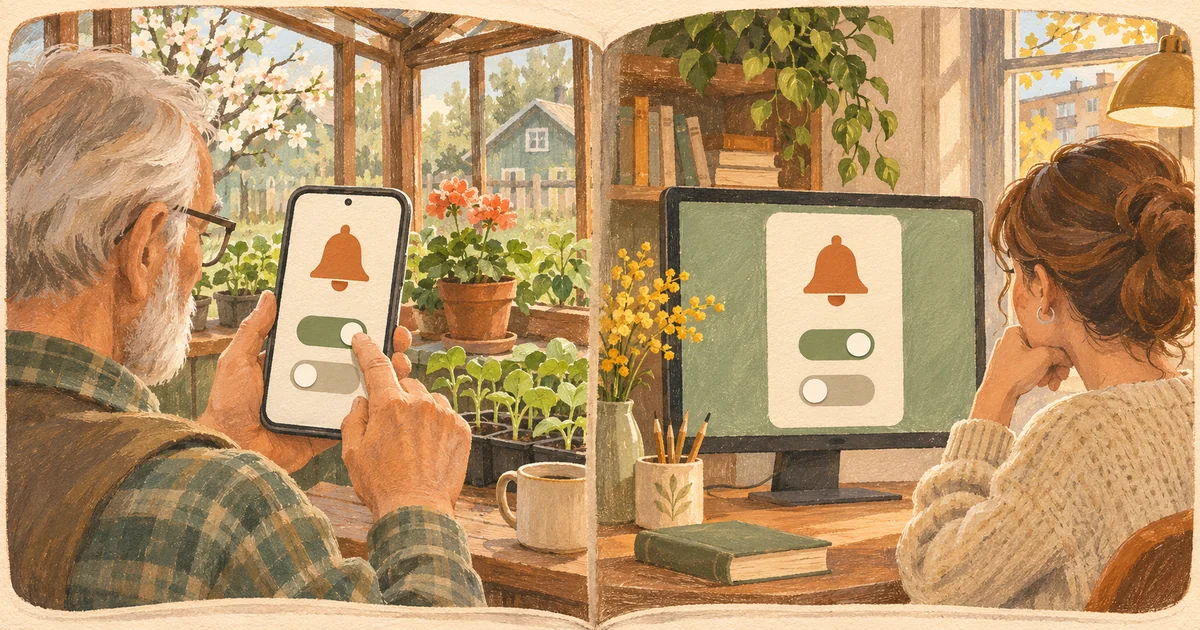
Your dad’s phone has stopped alerting him to new messages. He’s found three switches in the notification settings, and it’s hard to tell over the phone which one he means. Ask him to share his screen. Once you can read the labels together, he can choose the right switch himself.
Invite someone to view your screen
Start on the phone or tablet you want to show. Your approval lets your helper view the screen without a password.
- Find your phone’s ID
Open Remoqa and look under “This device” for your nine-digit Remoqa ID. If the number is missing, tap “Get an ID”.
- Ask your helper to connect
Give them your ID. On their computer, they enter it in Remoqa and select “Connect”. Keep the app open on your phone while you wait.
- Check who’s asking
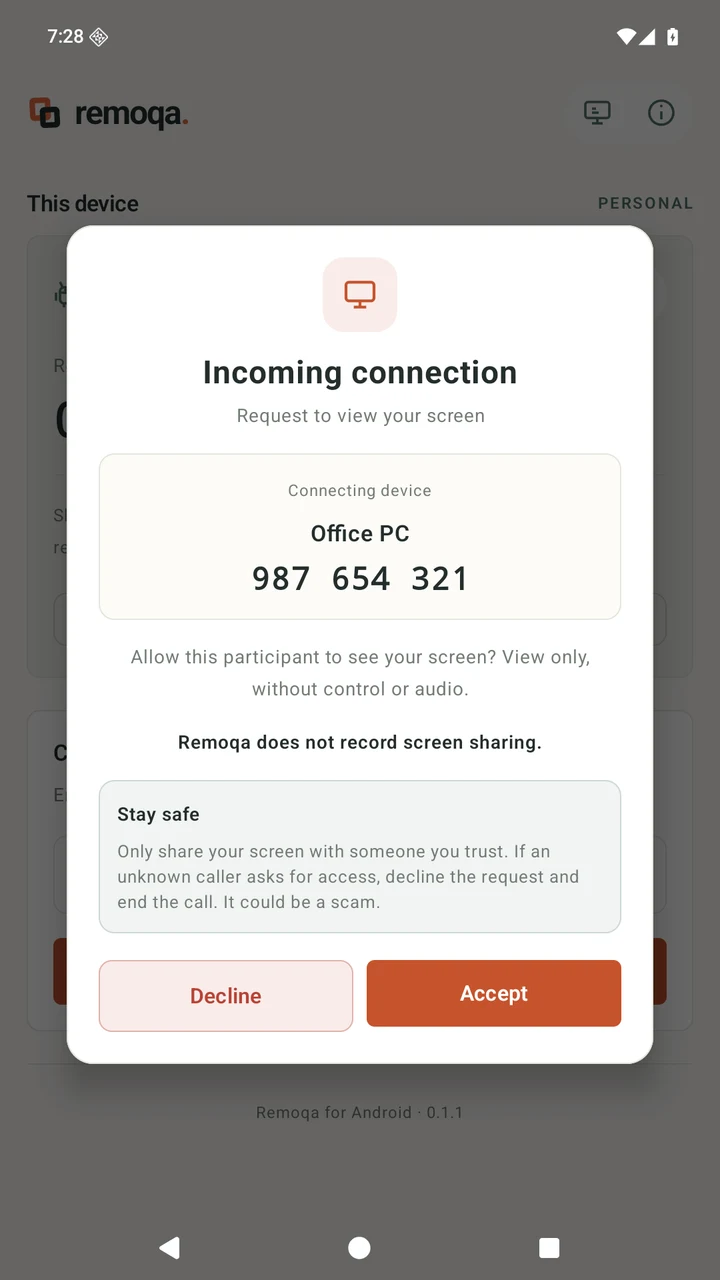
The incoming request shows the computer’s name and ID. Ask your helper to read out their own ID. If it matches, tap “Accept”. Decline any request you weren’t expecting.
On Android, choose what to show
After you tap “Accept”, Android opens its screen-sharing prompt. If it offers a choice, share one app to show a problem inside it. Choose the entire screen if you need to move from your messaging app to the phone’s notification settings.
Confirm your choice, then open the setting you want help with. When you share the entire screen, your helper can also see notifications that appear. Stop sharing before opening a private message or entering a password.
When you’re finished, expand the Remoqa notification and tap “Stop”, or return to Remoqa and tap “Stop sharing”.
On iPhone or iPad, confirm the broadcast
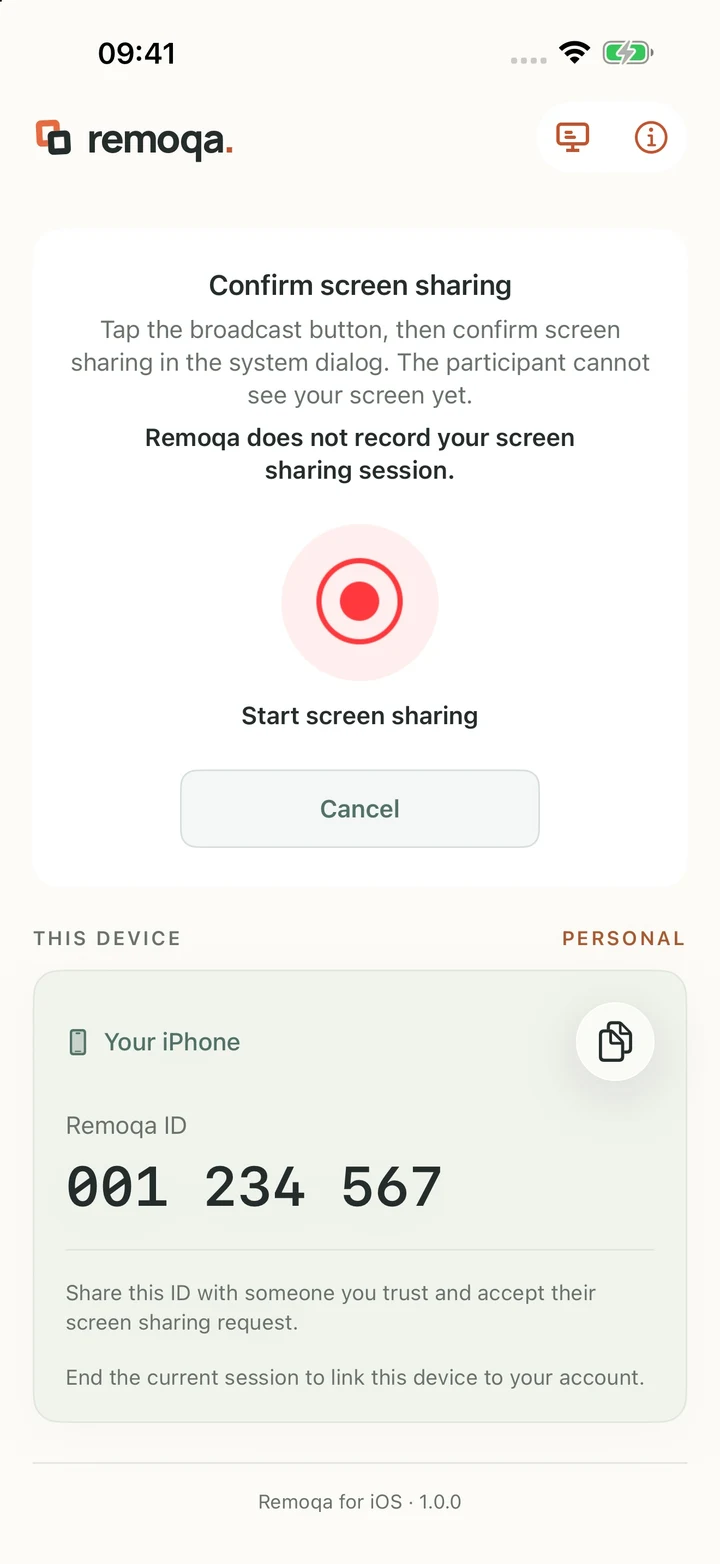
After accepting the request, tap the red “Start screen sharing” button in Remoqa. Choose “Start Broadcast” in the system prompt. Once your helper sees the picture, open the app or settings you want to show.
Your helper can see the next screen you open. Before typing a password or reading a private message, tap the broadcast indicator at the top of the screen and confirm that you want to stop. You can also return to Remoqa and tap “Stop sharing”.
If your helper is still waiting
If the request never appeared, open Remoqa on your phone. Compare the ID under “This device” with the one your helper entered on the computer. Check that both devices are online, then ask them to try again.
If you accepted but your helper still sees no picture, finish the Android screen selection or confirm the iPhone or iPad broadcast. If you cancelled or stopped sharing, ask your helper to send a fresh request and approve it again.
Once you’ve changed the notification setting, end sharing and ask your helper to send an ordinary message. You’ll see straight away whether the alert is back.