Control your computer from an iPhone, iPad or Android
Reach your desktop from a phone or tablet. Learn how to connect with Remoqa, use touch gestures, type, switch monitors and finish your session.
The short version
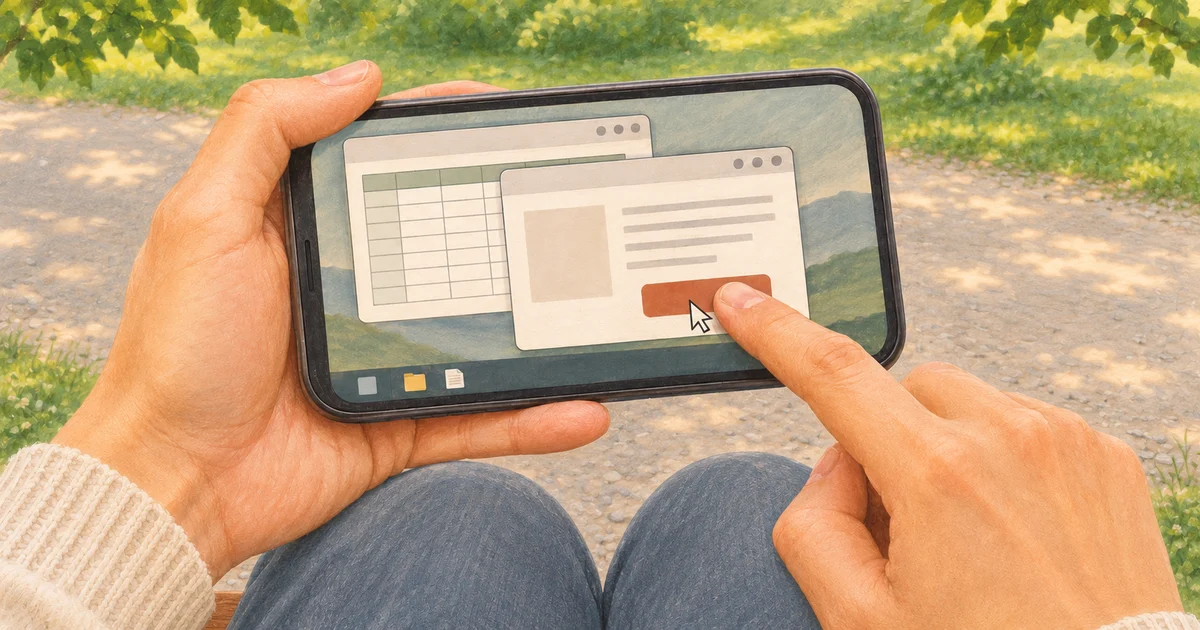
Prepare the computer first, then connect from the mobile app using its nine-digit ID and authorised access. Touch gestures handle clicks, scrolling and zoom; the keyboard controls send text and shortcuts to the computer.
A small correction to a document need not wait until you get back to your desk. If your computer is ready for remote access, you can open its desktop on your phone, make the change and save it there. A tablet gives you more room for longer tasks; a phone is useful for a quick check or helping someone with an unfamiliar dialogue box.
Get both devices ready
Install and open Remoqa on the Windows, macOS or Linux computer you want to use. Keep it connected to the internet and awake. On a Mac, grant the requested screen recording and Accessibility permissions so the app can show the desktop and accept your input.
Install Remoqa on your iPhone or iPad from the App Store. Android downloads include Google Play, AppGallery and an APK from our website. Use the links on Downloads to choose the right version. The phone can use Wi-Fi or mobile data; it does not need to share the computer’s network.
If nobody will be at the computer, configure a strong, unique permanent password for unattended access before leaving. Try reconnecting while you are still nearby. A password alone does not wake a sleeping computer or turn it on.
Make your first connection
The computer runs the applications; your mobile device displays them and sends your actions. An iPhone can control a Windows PC, and an Android tablet can connect to a Mac.
- Find the computer’s ID
Open Remoqa on that computer and note its nine-digit ID. Enter it in the connection form on your phone or tablet and start the connection.
- Authorise access
Use the one-time password shown on the computer, its previously configured permanent password, or ask the person at the computer to accept your request. Knowing an ID is not permission to connect.
- Check the security code when shown
For an attended connection, compare the displayed code with the person at the computer. End the connection if the codes differ. Permanent-password access does not ask for this interactive comparison.
- Try one small task
Wait for the desktop, open a window and type a few words. Check that control is allowed before relying on the connection for work.
Use your fingers as the mouse
Touch the place you want to act on in the remote image. Enlarge small buttons before tapping them. The basic gestures are the same on iPhone, iPad and Android.
- Click or double-click
Tap once for a left click, or twice quickly in the same place for a double-click.
- Open a context menu
Touch and hold to send a right click.
- Scroll a page
Move two fingers together up or down.
- Zoom and look around
Spread two fingers to enlarge the image, or pinch to reduce it. Move one finger to pan around the enlarged desktop.
Type on the remote computer
Tap a text field on the desktop first, then open the keyboard using the button in the session controls. What you type goes to the selected field on the computer. The special-key menu includes Enter, Tab, Escape, arrow keys and F1–F12.
Use the shortcut menu for combinations such as Ctrl+A on Windows or ⌘+A on a Mac. Choose for the computer’s operating system, even when the phone uses a different one. Copy and paste shortcuts use the computer’s own clipboard; they do not automatically move text between the phone and computer.
Give the desktop more room
Turn your phone sideways for wide windows. Pinch to zoom or use the magnifying-glass control; Fit screen brings the whole desktop back into view. Panning changes your view of the image only: dragging files or windows on the remote desktop is not supported by these mobile touch gestures.
For a computer with several monitors, use the monitor selector to choose the one you need. Wait for its image before clicking. You can hide the session controls when they cover part of a window, then bring them back with the remaining control.
Return later, and end the session properly
A successful connection adds the computer to the recent-connections list on that mobile device. Rename the entry to something useful, such as Home office, and select it next time instead of entering the ID again. The list does not save either kind of access password or remove the need to authorise a new connection.
When you finish, use the power-symbol button to disconnect. Going back to the connection form can leave the session active; use the explicit disconnect action when you want it to end.
Know what to check
Try a short session before depending on mobile access. These checks cover the most common surprises.
- I can see the desktop but cannot click
Check that the session allows control rather than viewing only. On macOS, check Remoqa’s Accessibility permission as well.
- The computer is unavailable
Check the ID, both internet connections and whether Remoqa is running. Sleep, a power cut or a disk-unlock screen after a restart can prevent access. On Linux, keep Remoqa running in a signed-in user session.
- I need a file or computer audio
The current mobile viewers do not provide file transfer or remote audio. You can work on a document on the computer and save it there; that does not download a copy to your phone.
- Does my plan still apply?
Yes. A connection from a phone or tablet is a Remoqa session and remains subject to your plan’s limits. Use a larger screen for detailed work, and test the connection quality on the network you expect to use.